
Recuperação de senha de conexão Smartftp
Advanced FTP Password Recovery for SmartFTP – Solution for easy recovering the FTP passwords of SmartFTP.
How to make the SmartFTP password recovery?
How to recover FTP password of SmartFTP (by SmartSoft Ltd.)?
FTP Options of SmartFTP
1. Run SmartFTP client software
2. Selecione a conexão FTP para recuperação de senha (ftp.microsoft.com for example)

3. Anote o nome atual do host e as configurações da porta. You should restore them after recovery
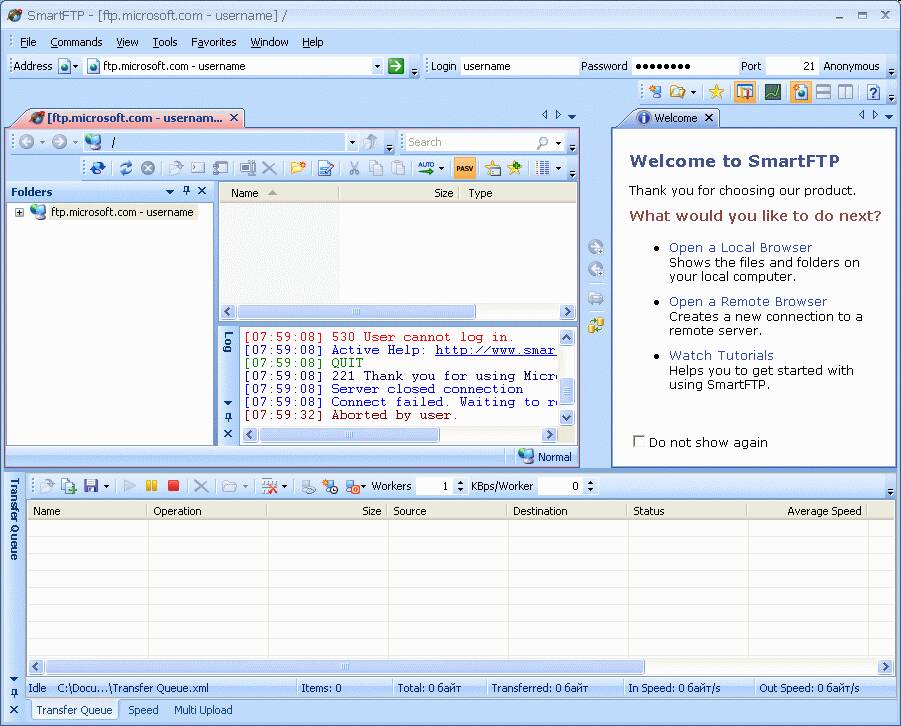
4. Type in LOCALHOST to the Address field. * você também pode digitar 127.0.0.1 or current IP address of the computer where the Advanced FTP Password Recovery will be started.

5. Run the Advanced FTP Password Recovery tool and launch the FTP server emulation by pressing Start button on the Settings tab.
Indicador verde mostrará que a emulação do servidor é iniciada.
* You should change the port value also in case if the SmartFTP port settings are not default (21)
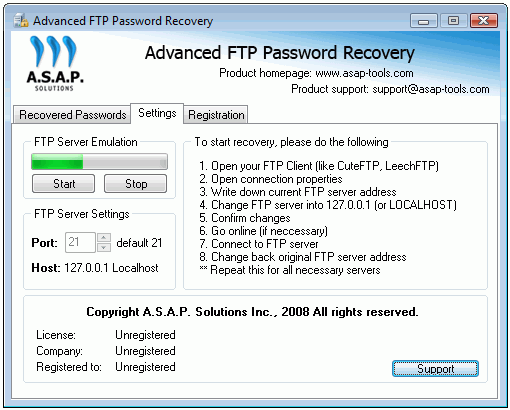
6. Go to the SmartFTP tool and start the FTP connection selected in step #2
To do it – you should press GO button 
7. After connection you will get the recovered password displayed in Advanced FTP Password Recovery special tab named as Recovered Passwords:
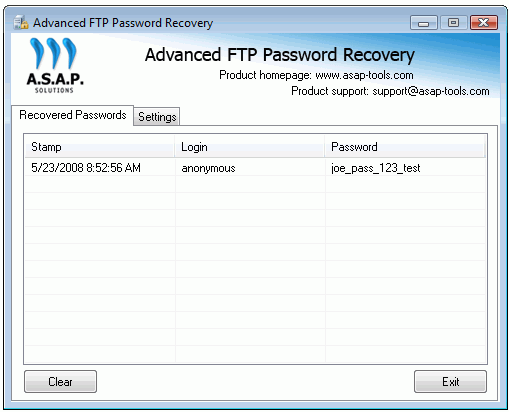
Now you can write down the recovered password and change the Address (and port if applicable) to original values (Veja o passo #4)