Step by Step Instruction for Safe File Move Shredding Mode

How to move and erase files and folders and make sure that nobody can recover them for ever. How to move files to another storage device and erase all traces.

File Move Shredding Mode

To run the files moving and shredding operation you should:

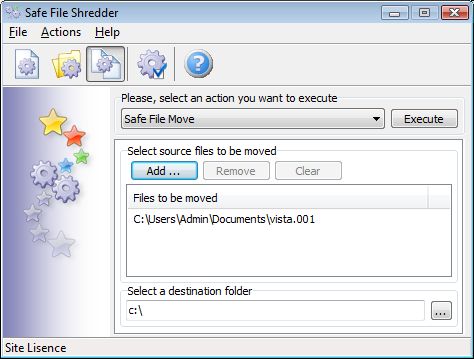
1. Activate theSafe File Movemode
2. Select a set of files to be moved then shredded
3. Select the destination folder
4. Execute the shredding process

shredder main window mode3 Safe File Move Shredding Procedure Description

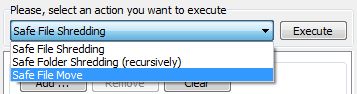
Open the actions list and select theSafe File Moveaction.

shredder mode select3 Safe File Move Shredding Procedure Description

shredder third button Safe File Move Shredding Procedure DescriptionTo activate the “Safe Move Shredding” mode
you can also press the third menu button.

Select files to be moved then shredded

프레스 Add … button to open the standard Windows dialog.
To select a single file you should choose it and press the Open 단추.

To select multiple files you should do the following:

Select the first file of the sequence, hold the Shift key and click on the last file you wish to select. Or you can hold the Ctrl 키를 연속적으로 클릭하여 각 파일을 선택되고 싶다.

After that you can press the Open button and the set of files will be added to the shredder list. 맑은 button allows you to erase the shredding list, just press this button if you wish to completely remove all selected files. 와 제거 button you can remove one or multiple files from the shredder list. To remove a single file, select it and press the 제거 단추. To remove a set of files you should select multiple files and press the 제거 단추.

Select the destination folder

You can type in the full path to the target directory or press the Browse () button to select it.

Execute the files moving and shredding

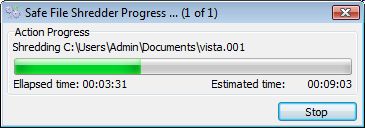
To start shredding press the 실행 단추. The process will be started and the progress indicator will be shown.

shredder progress Safe File Move Shredding Procedure Description

주의: The already processed files are shredded forever !

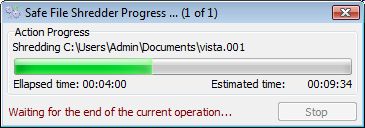
In order to stop the shredding operation, 당신은 보도해야 Stop 단추. The program will ask you to wait for the end of the current operation.

shredder progress stop Safe File Move Shredding Procedure Description

When the current operation is finished, the confirmation dialogue will be displayed.
shredder confirmation Safe File Move Shredding Procedure Description
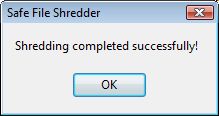
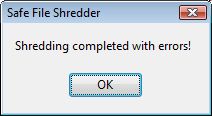
When the shredder process is finished, you will get one of the messages:

shredder message complete Safe File Move Shredding Procedure Descriptionshredder message complete error Safe File Move Shredding Procedure Description

Operation completed successfully    Operation completed with errors

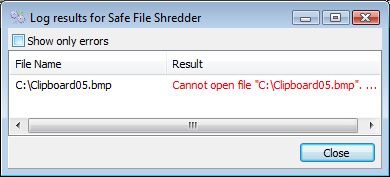
In case of errors you will be able to see the errors log. You can select the option to see only error messages or the whole process messages in the log result window. Errors are marked with red color.

shredder error log Safe File Move Shredding Procedure Description

Some of frequent errors:

Cannot open file (The file was blocked with another application and shredder can not process it.) Please close the application which is using this file and try again.